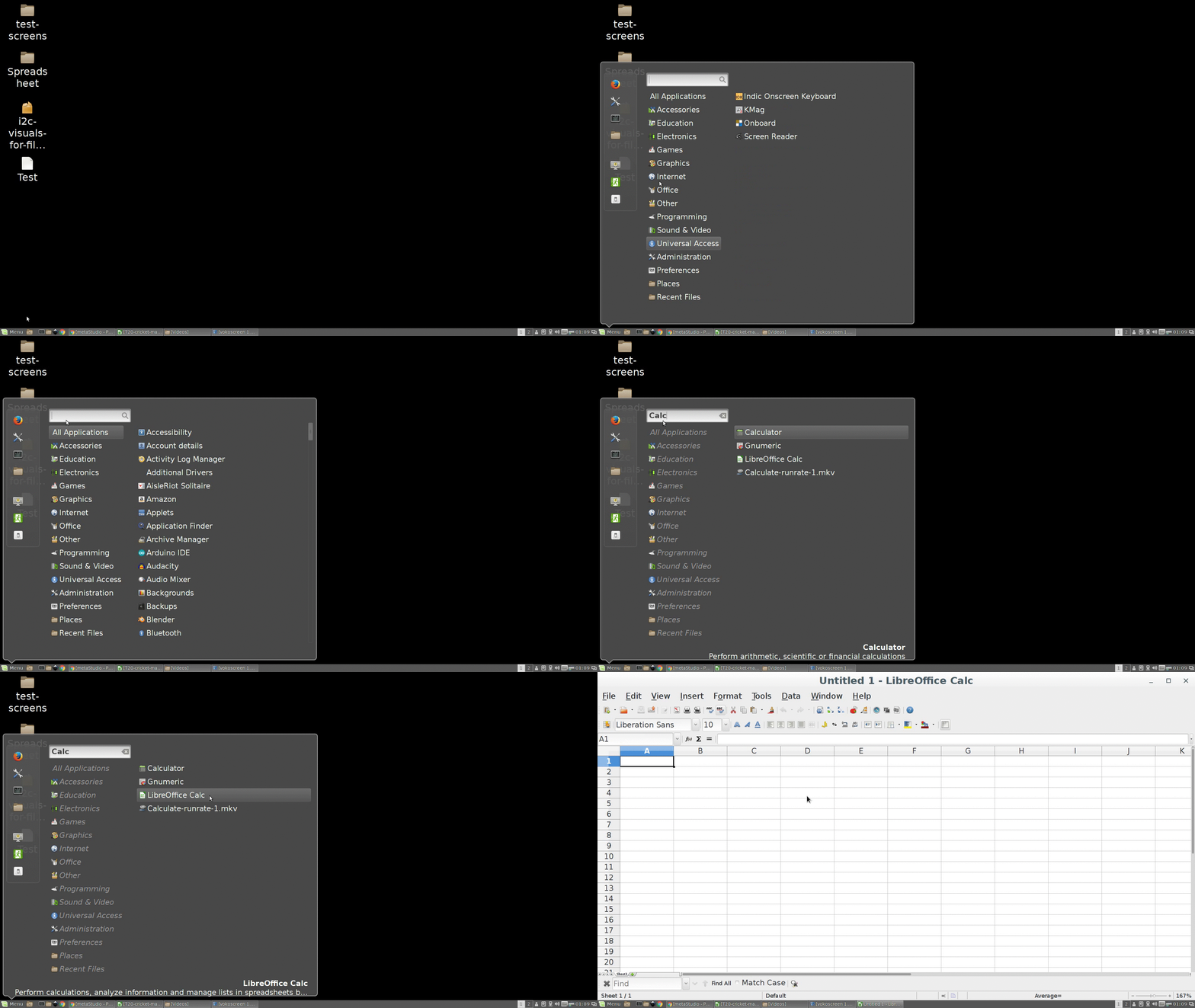
- For opening a spreadsheet go to start menu and type "Calc" or "Libreoffice Calc" in search box
- Click on the icon with name "LibreOffice Calc", spreadsheet will get opened
- You can also use shortcut on desktop or in start menu if available directly.
-
స్పియర్ షీట్ ను ఓపెన్ చేయడానికి స్టార్ట్ మేనూకు వెళ్ళండి మరియు సెర్చ్ బాక్స్లో ‘‘కాల్క్’’ లేదా ‘‘లిబరేఆఫీస్ కాల్క్’’ టైపు చేయండి.
-
‘‘లిబరేఆఫీస్ కాల్క్’’ పేరు గల ఐకాన్ పై క్లిక్ చేయండి, స్ప్రెడ్ షీట్ ఓపెన్ అవుతుంది.
-
నేరుగా లభిస్తే డెస్క్టాప్ పై లేదా స్టార్ట్ మేనూలో మీరు షార్ట్కట్ ని కూడా ఉపయోగించవచ్చు.
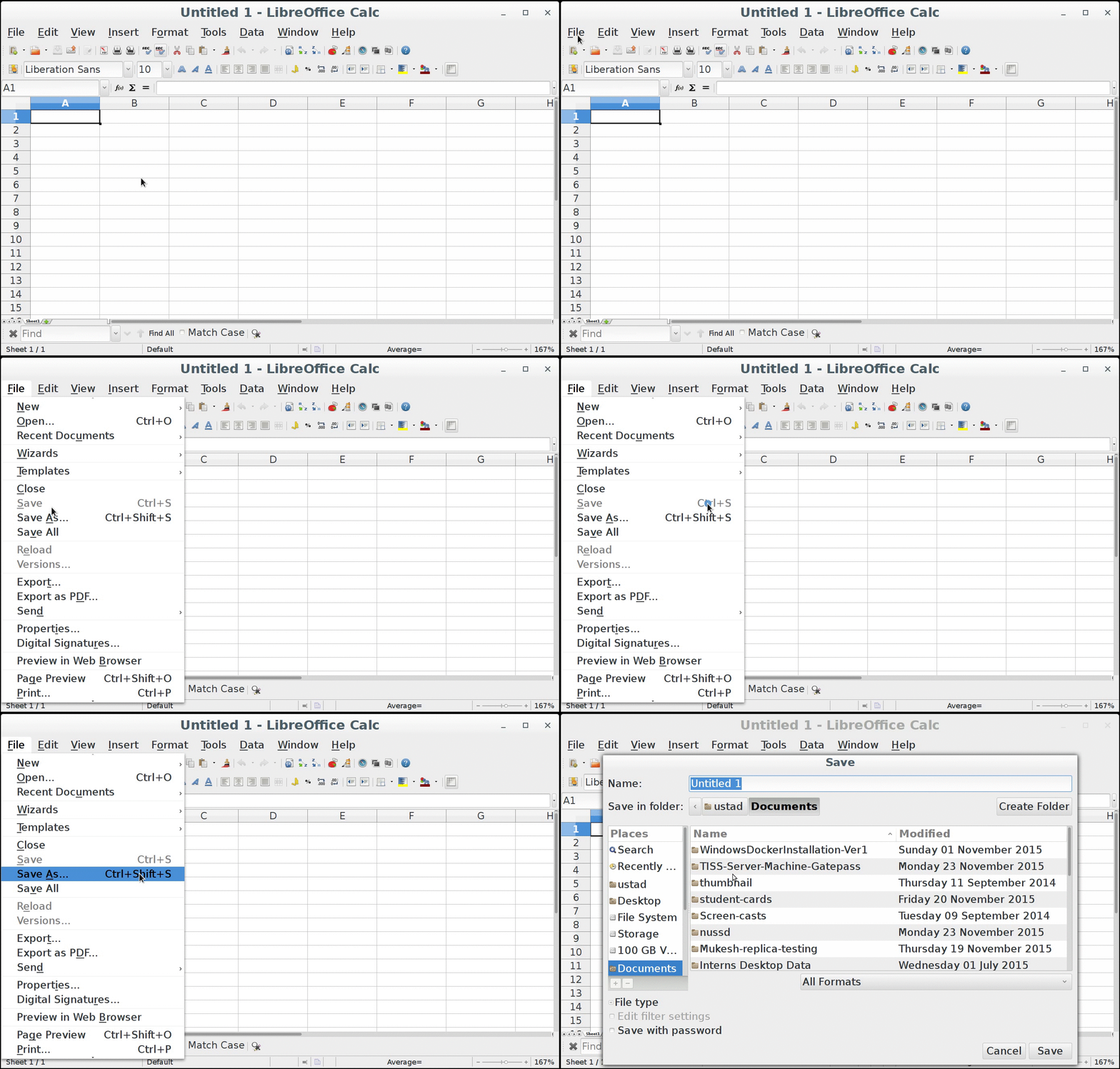
- Whenever we create new spreadsheet, we should save it at some location by naming the file.
- So newly opened spreadsheet can be saved using key combination as "Ctrl + S"
- Also can be done using "Save" option from "File" menu, present on left top corner.
- 2 steps for saving file
-
మనం ఎప్పుడూ కొత్త స్ప్రెడ్ షీట్ ని క్రియేట్ చేసినా, ఫైల్ పేరు ఇవ్వడం ద్వారా ఏదో ఒక చోట దాన్ని భద్రపరచాలి.
-
కాబట్టి కొత్తగా ఓపెన్ చేసిన స్ప్రెడ్ షీట్ ని “ctrl+S”గా కీ కాంబినేషన్ ని ఉపయోగించి భద్రపరచవచ్చు.
-
పైన ఎడమ వైపు మూలలో ఉన్న “File” మేనూ నుంచి “Save” ఆప్షన్ ని ఉపయోగించి కూడా చేయవచ్చు.
-
ఫైల్ ని సేవ్ చేయడానికి 2 స్టెప్స్
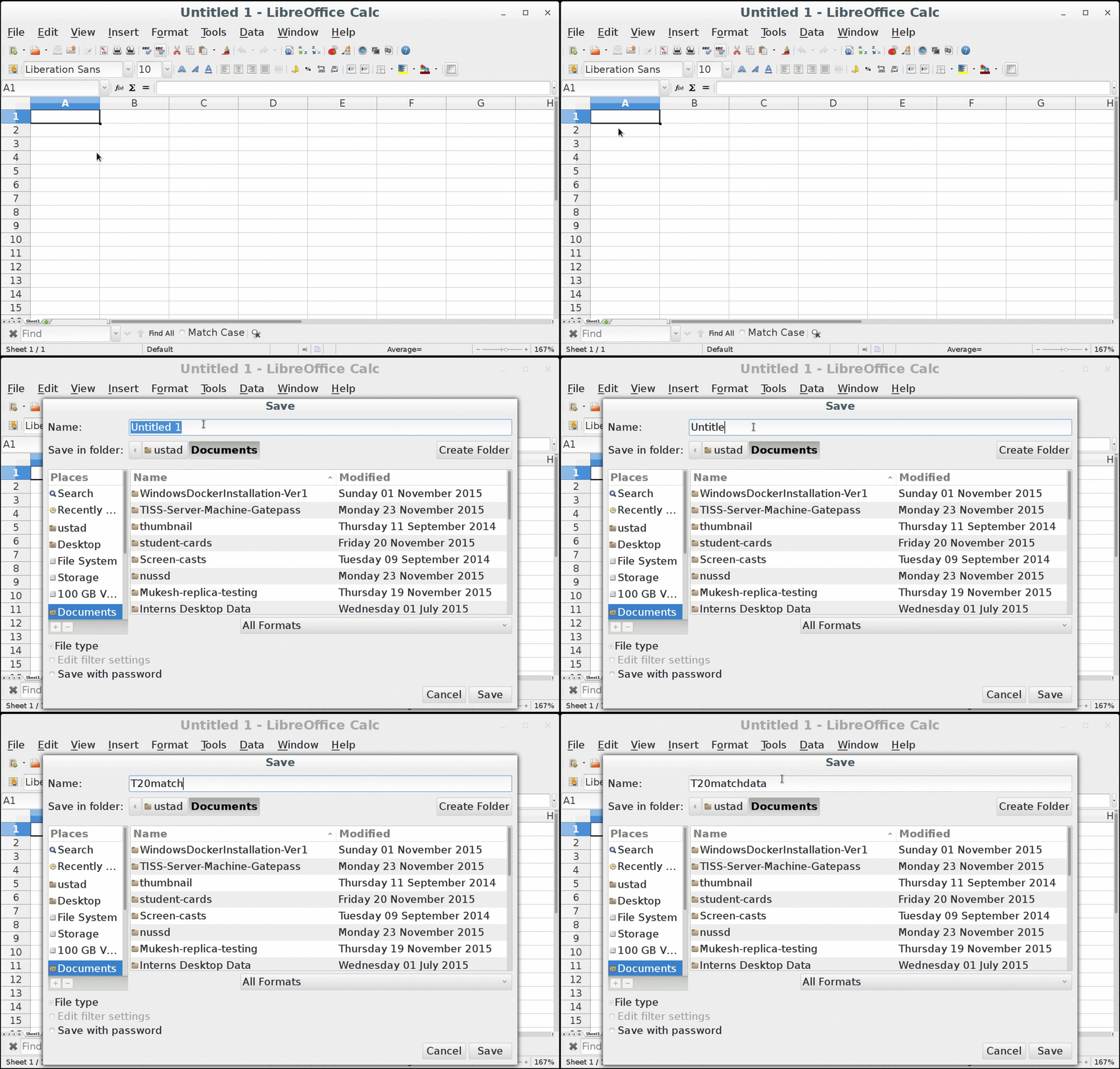
Naming File:
ఫైల్ పేరు ఇవ్వుట:
-
Name of the file should reflect, what the file is about in short.
-
Avoid using special characters like @,!,$,#,%,^,&,*,(,),
-
We can use "-" or "_" in file name
-
ఫైల్ దేని గురించి అనే విషయాన్ని ఫైల్ పేరు క్లుప్తంగా ప్రతిబింబించాలి.
-
@,!,$,#,%,^,&,*,(,), లాంటి ప్రత్యేక క్యారక్టర్లు ఉపయోగించడం మానుకోవాలి.
-
ఫైల్ పేరులో మనం "-" or "_" ఉపయోగించవచ్చు.
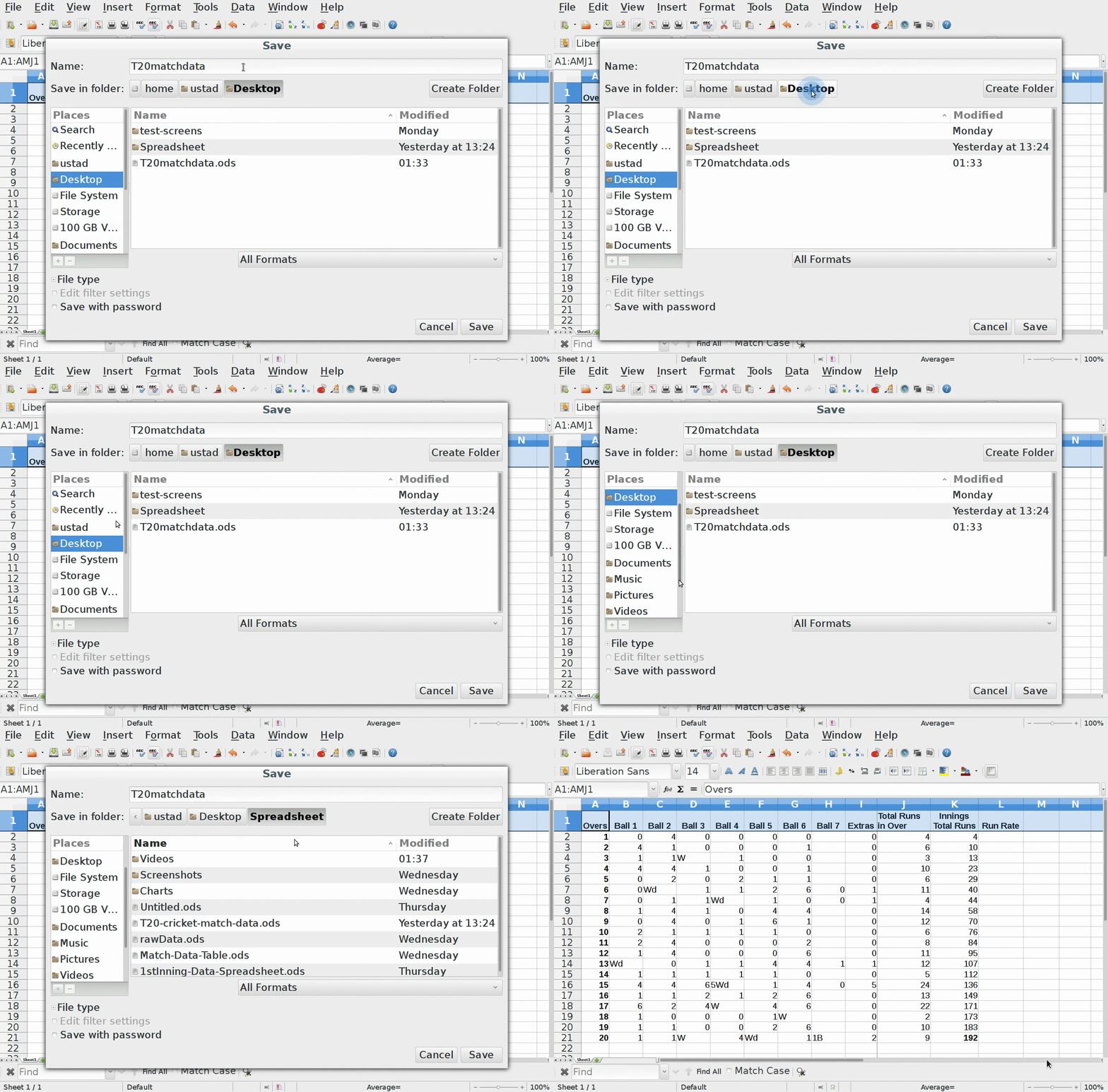
For entering, editing data into a cell of the spreadsheet, we need to navigate from one cell to another.
Navigating cells using mouse
సెల్స్ మధ్య నేవిగేట్ కావడం మౌస్ ఉపయోగించి
-
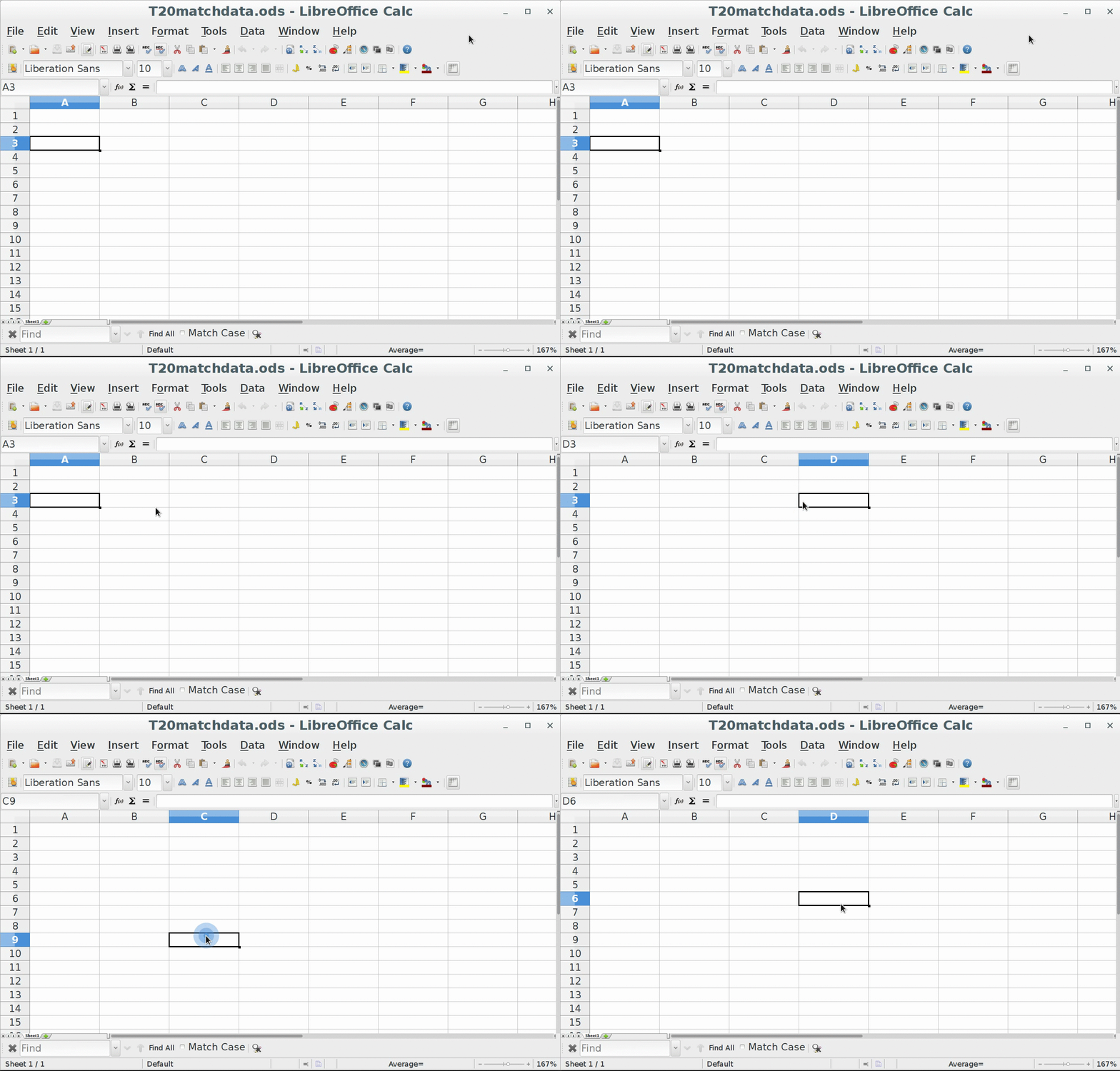
We can navigate between cells, using mouse left button.
-
Using this, we can directly jump to select any cell of the spreadsheet
-
If the cell we want to select using mouse, is not visible in current area of spreadsheet on the screen, then we can use scroll-bars, to make it visible and select it.
-
మౌస్ ఎడమ బటన్ ను ఉపయోగించి, గదుల మధ్య మనం వెళ్ళవచ్చు.
-
దీన్ని ఉపయోగించి, స్ప్రెడ్ షీట్ లోని సెల్ దేనినైనా ఎంచుకోడానికి మనం నేరుగా జంప్ కావచ్చు.
-
మౌస్ ని ఉపయోగించి మనం ఎంచుకోవాలనుకుంటున్న గది, స్క్రీన్ పై స్ప్రెడ్ షీట్ యొక్క ప్రస్తుత ఏరియాపై కనిపించకపోతే, అది కనిపించేలా చేసేందుకు మరియు దాన్ని ఎంచుకునేందుకు, మనం స్క్రోల్-బార్స్ ఉపయోగించవచ్చు.
In this module we will be using LibreOffice Calc to learn about various features of spreadsheets.
In basics of spreadsheet, we will cover:
స్ప్రెడ్ షీట్ యొక్క మౌలిక అంశాల్లో, మనం కవర్ చేస్తాము:
స్ప్రెడ్ షీట్ ని ఓపెన్ చేయడం
స్ప్రెడ్ షీట్ ఫైల్ ను సేవ్ చేయుట
ఫైల్ నేమ్ ఇవ్వుట
ఫైల్ ని స్టోర్ చేసేందుకు లొకేషన్ ఎంపిక
స్ప్రెడ్ షీట్ కి వెళ్ళుట
Go through each help content to learn about basics of spreadsheet